Bad Quality Image Maker

Image Quality Degrader

Use this image quality degrader when you want precise control over how a picture breaks down. An image quality degrader, also called an image quality decreaser, lets you control JPEG compression, pixels, blur, color, and noise.

The tool on this page starts from a crunchy degradation preset, which makes changes easy to see before you dial settings up or down for your specific image.

Image Damage Workspace
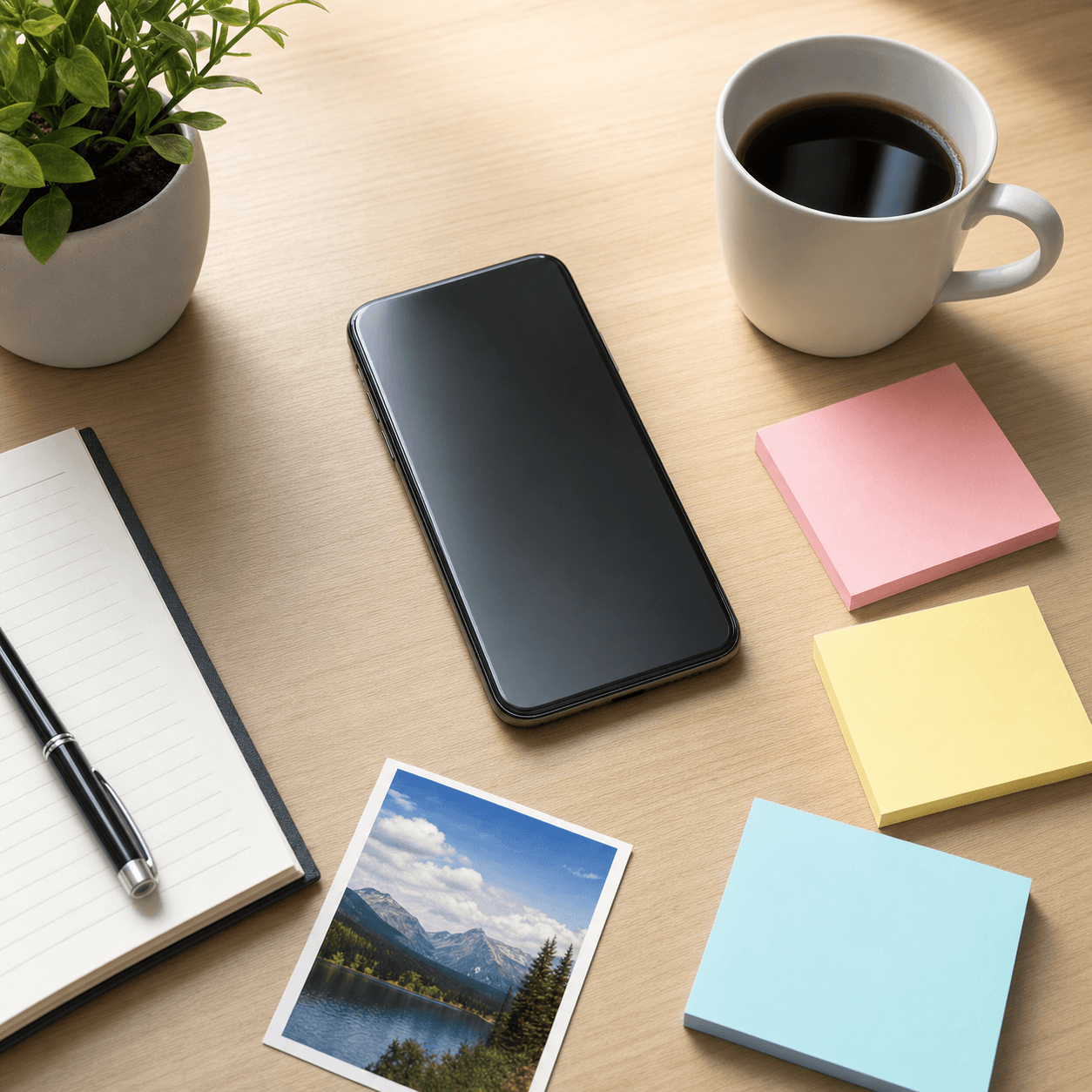
Sample loaded. Your image stays in the browser.
Originalsample image
SizeSample
Resultcrunchy
SizeCalculating...

When to use this tool

These use cases are specific to image quality degrader rather than the broader homepage tool.

  • Test how far an image can be degraded before details disappear.
  • Create a controlled bad-quality asset for design or QA examples.
  • Compare file-size changes across quality and noise settings.
  • Make a custom mix of blur, pixelation, compression, and color damage.

How to use Image Quality Degrader

Follow this workflow when you want the page preset to produce the intended visual style.

  1. Upload the image you want to test, then treat the page like an image quality degrader rather than a one-click compressor.
  2. Lower JPEG quality in stages and watch which parts of the image break first: gradients, text edges, faces, or flat color areas.
  3. Add pixelation when you want structural damage, or add blur when you want detail loss without large blocky squares.
  4. Use saturation, contrast, and noise only after the compression level is chosen, because color damage can change the perceived severity.
  5. Compare original KB and result KB after each change so the final degraded JPG matches both the visual target and the file-size target.

Image Quality Degrader settings

Start from the embedded preset, then use these ranges to tune the result for a specific target.

GoalJPEG qualityPixel sizeBlurColorNoise
Controlled degradation24-423-80-2Saturation 90-14012-35
Crunchy texture10-226-120-1Contrast 150-21045-70
Blurred degradation32-501-44-8Saturation 80-1208-20
Pixel damage18-3412-240Contrast 100-15010-30

Image Quality Degrader tuning notes

Use these notes to avoid results that are either too clean or too damaged for this specific effect.

Use one primary damage source

For controlled degradation, choose the main source of quality loss first. JPEG quality creates compression artifacts, pixel size creates blocky structure, and blur removes detail. Mixing all three heavily can make the result hard to diagnose.
Watch text and edges

Screenshots and interface images show degradation quickly around text, icons, and thin lines. If those edges disappear too fast, raise JPEG quality or reduce pixel size before changing color controls.

Noise can fight compression

Noise is useful for rough texture, but it can also increase file complexity. If you need a smaller degraded image, lower JPEG quality before increasing noise.

Image Quality Degrader examples

These examples show common before and after directions for this effect.

Quality drop

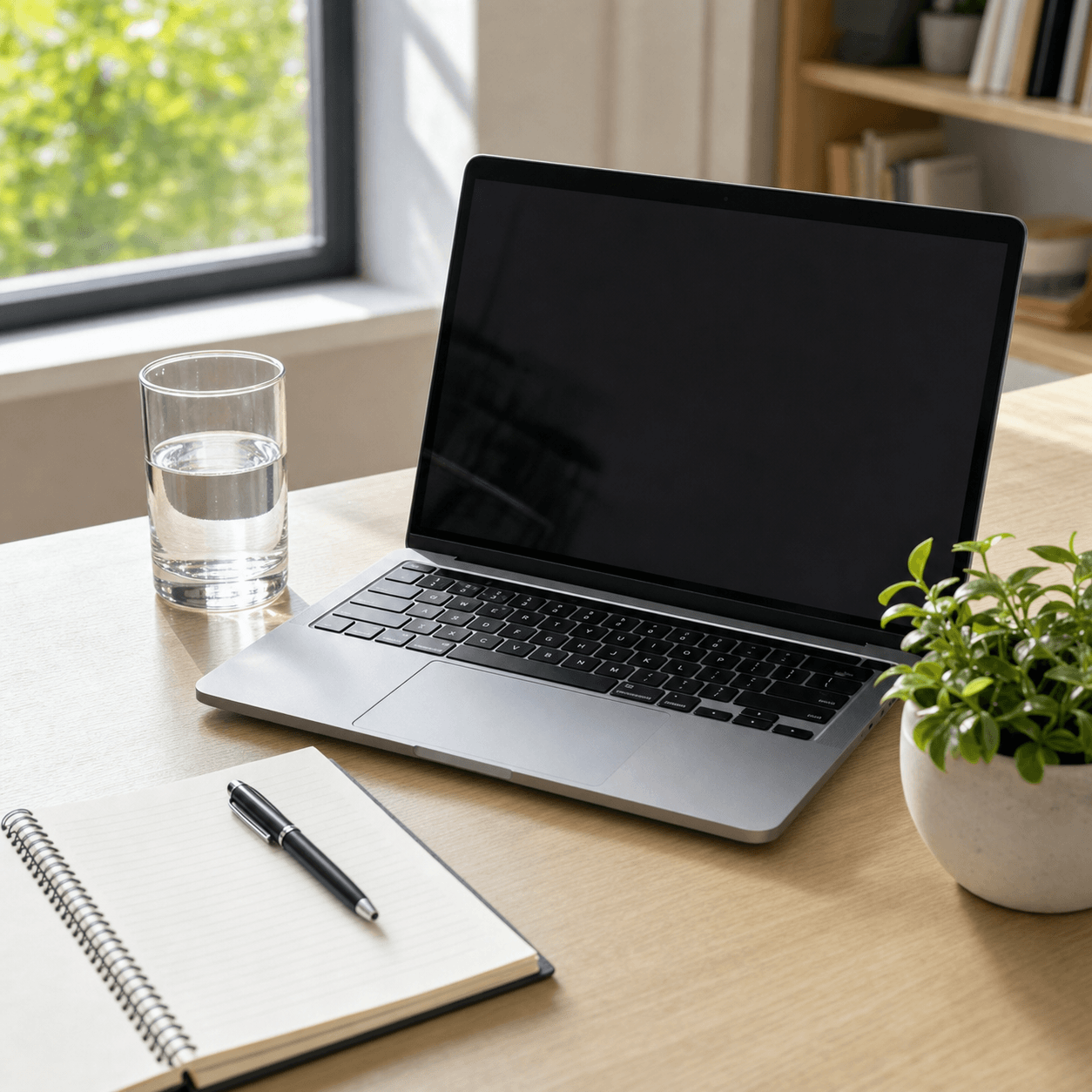
Quality drop original imageHigh fidelity
Original492 KB
Quality drop degraded resultDamaged JPG
Result24 KB95% saved

Pixel damage

Pixel damage original imageSmooth edges
Original484 KB
Pixel damage degraded resultBlocky output
Result15 KB97% saved

Blur pass

Blur pass original imageDetailed image
Original514 KB
Blur pass degraded resultSoft degraded
Result20 KB96% saved

Image Quality Degrader FAQ

Answers for this specific image-quality effect.

Which control degrades quality the most?

JPEG quality usually has the strongest overall effect. Pixel size changes the structure, blur softens detail, and noise adds a rough texture.

Can I use this as an image quality degrader instead of a compressor?

Yes. The goal is visible degradation, not clean optimization. Use the preview to choose the amount of damage you want.

Why does noise sometimes increase file size?

Noise adds visual detail that JPEG compression may need more bytes to store. Lower the JPEG quality if file size matters.

Can I download the degraded image as JPG?

Yes. The tool downloads the processed result as a JPG using the current quality setting.

How is this image quality degrader different from resizing?

Resizing changes image dimensions. This image quality degrader changes visible quality by adjusting compression, pixelation, blur, color, contrast, and noise.

Which setting should I change if the degraded image is too large?

Lower JPEG quality first. If noise is high, reduce it slightly because noise can add detail that makes JPG compression less efficient.

Use these pages for adjacent bad-quality image styles.